Cross-References & Field Mapping
Every trading partner sends its own codes and its own extra information. Three layers decide how that becomes your records:
| Layer | What it decides | Who changes it |
|---|---|---|
| Cross-references | Which of your records a partner's code means: an item, a unit, a store's address, a ship method. | Anyone with EDI write |
| Field mapping | Where each extra value the partner sends goes in your records — or, for documents you send, where it comes from. | Anyone with EDI write; the document's settings, an EDI administrator |
| Mapping rules | How the partner's EDI format is read and written. Fixed by the partner's specification. | ianai, at your request |
You never need to touch EDI segments. Cross-references and field mapping are plain forms, and a mapping change is asked for in your own words.
Cross-references
Open EDI → Trading partners, open the partner, and choose the Cross-references tab.
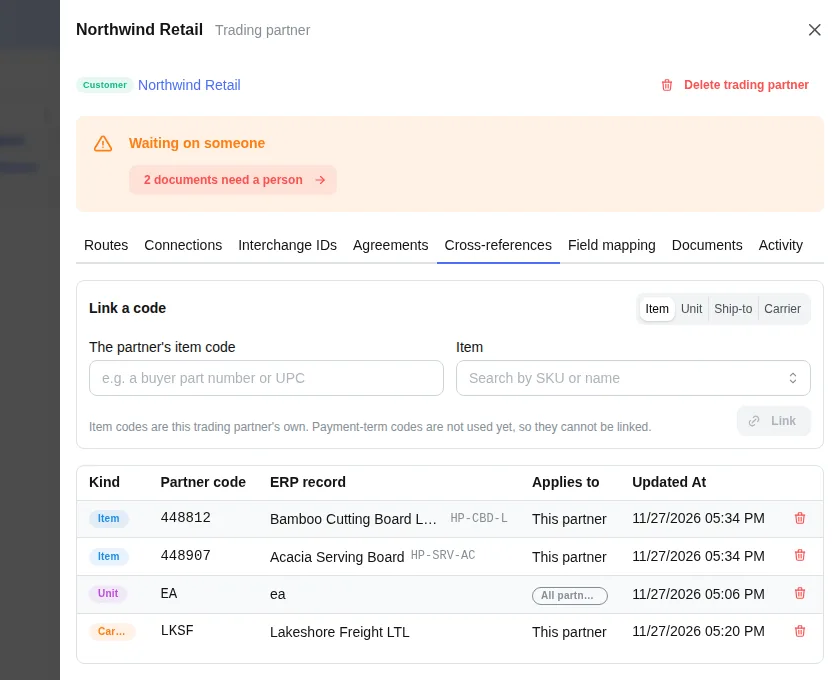 A trading partner's cross-references
The table shows each link: its Kind, the Partner code, the ERP record it means, and whether it Applies to this partner or All partners.
| Kind | The partner's code | Links to | Applies to |
|---|---|---|---|
| Item | A buyer part number, UPC or other item code | One of your items | This partner |
| Unit | A unit code such as CA (case) | One of your units | All partners (the codes are a standard list) |
| Ship-to | A store or distribution center number | One of the customer's addresses | This partner |
| Carrier | A carrier code (SCAC) such as UPSN | One of your ship methods | All partners when linked here (SCACs are one standard list) |
To add one, use Link a code: pick the kind, type the partner's code, pick your record, and click Link. Ship-to links need the partner to be linked to a customer with at least one address.
You rarely have to fill this in ahead of time. When an order arrives with a code that has no link, the document stops and its Fix unknown codes section asks you which record it means — the link you pick is saved here. See Fixing Documents That Need a Person.
How codes are matched without a link
- Items: a cross-reference first. Without one, the vendor's item number is matched exactly against your items' SKUs, and a GS1 code (UPC, EAN, GTIN) against your barcodes in every length. A code that matches nothing — or matches more than one item — stops the order. Buyer part numbers are the partner's own, so they always need a cross-reference.
- Units: only a cross-reference. A line with no unit code takes the item's own unit.
- Ship-to: an order that gives a full address uses it. An order that names only a store number needs a link. An order with no ship-to at all ships to the customer's own address, unless the agreement requires an address.
- Carrier: a link sets the order's ship method. Without one, the ship method is left as the mapping gives it.
No item, unit or address is ever created from a partner's code: an unknown code stops the document rather than adding something to your item list.
Removing a link takes effect on the next documents. For a unit or carrier link, it is removed for every partner.
Field mapping
The Field mapping tab decides where each extra value a partner sends goes in your company — a customer order number, a department, a gift message, the buyer's item number on each line — and, for documents you send, where each value the partner asks for comes from.
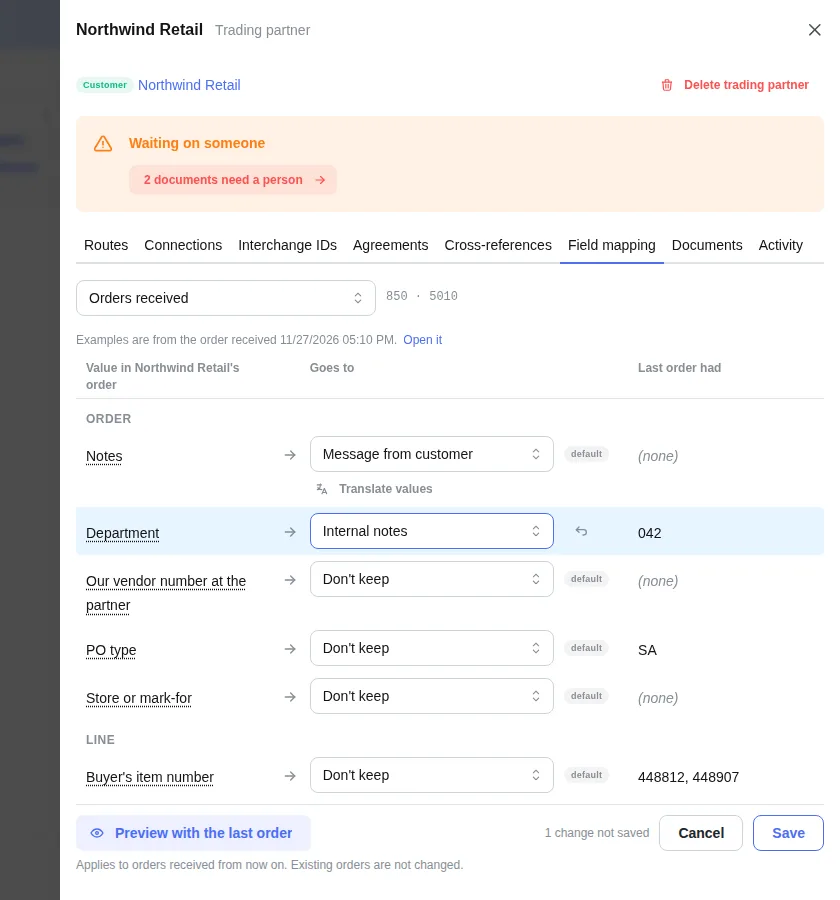 Field mapping for orders received, with one value going to a custom field
Pick the document at the top (for example Orders received, Order changes received, Ship notices sent, Invoices sent). Each value the partner's documents carry has a row, grouped under the document and under Line:
- The value, with a tooltip saying where the partner's document carries it.
- Goes to (documents you receive) or Comes from (documents you send): where the value is kept.
- Last … had: up to three real examples from the last document of that kind, so you recognize the value. The line above the rows links to that document.
Every row starts with a default, marked default, and works with no changes at all. Change only the rows you care about; a changed row shows a button that puts the default back.
Where a value can go
For a document you receive, the picker offers:
- Notes — the order's internal notes or messages. Several values can go to the same notes, each on its own line under its label.
- Custom fields — your company's custom fields on the order, or on its lines for a line value. A custom field holds one value, so one already used by another row is greyed out with the row it is used by.
- Don't keep — the value is not kept.
Need a field that does not exist yet? New custom field… at the bottom of the picker opens the custom field form, already filled with the value's name and type, and selects the new field for the row when you save it. It is offered to people who may create custom fields.
For a document you send, each value the partner asks for can come from:
- As received on the order — the value the partner sent on its own purchase order (for acknowledgments, ship notices and invoices that answer an order).
- A field or custom field on the order, shipment or invoice being sent.
- A fixed value — always the same text, which you type.
- Leave out.
A value the partner requires shows {partner} requires this and is marked red when nothing is chosen for it. The tab label counts such values, and a document that would be missing one waits instead of going out incomplete.
Translate values
Translate values on a row turns the partner's values into yours, or yours into the partner's — for example the department code 042 into Housewares. For a choice-type custom field, pick from its choices. A value with no translation is kept as it is.
Standard fields
Standard fields (N), fixed lists what the mapping always fills — the PO number, items, quantities, prices, the ship-to and so on — and where each goes. They are shown so you can see the whole picture, but they are not a choice and cannot be used as a destination.
Settings for the document
Below the rows, Settings for … shows the options the partner's documents take, such as a supplier number, a facility ID, or who pays the shipping. Each shows its default. An EDI administrator changes them; others see their values.
Preview and save
Preview with the last … runs your unsaved choices on the last document of that kind and shows each value before and after, with what changed. Nothing is saved until you click Save.
Saved choices apply to documents received or sent from now on. Existing orders and documents already sent are not changed. Each save is recorded on the partner's Activity tab.
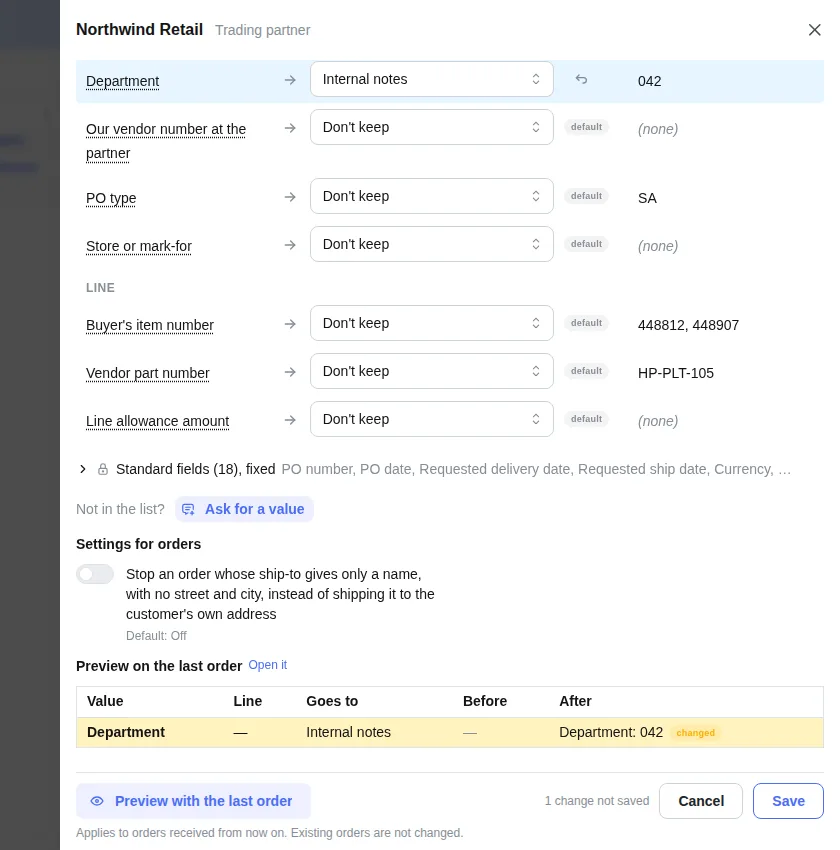 A preview of field-mapping choices on the last order received
If a partner's documents carry nothing beyond the standard fields, the tab says so and still shows the standard fields and settings. If it says a newer version of the rules names values to map, that version has to be put in force first: ask for it with Ask for a value.
People without EDI write see the same tab read-only.
Asking for a mapping change
Mapping rules follow the partner's specification, and a wrong rule means rejected documents and retailer chargebacks, so ianai maintains them and tests every change against the partner's samples before it is put in force.
When you need something the cross-references and field mapping cannot do — a value that has no row, a document the partner sends differently from its guide — ask for it:
- Ask for a value, under the rows on the Field mapping tab, or
- Request a mapping change on the agreement (Agreements tab) or on a document's page.
Describe the change in your own words, for example keep the department number on each order, in its Department field, and click Send request. The agreement shows your request and its progress:
| Status | Meaning |
|---|---|
| Asked | Your request is waiting. |
| Being drafted | A new version of the rules is drafted for it and waits to be put in force. |
| Done | The version made for it is in force. You are notified. |
| Declined | Not made, with the reason. You are notified. |
| Withdrawn | You withdrew it. |
You can Withdraw a request that is still open.
Reading the mapping
Mapping on an agreement opens the mapping rules read-only: every version (In force, Draft, Earlier), what a version changes against the one in force, the samples it is tested on, and Test against the samples, which runs a version on the samples and changes nothing.
An agreement marked Template updated runs an earlier version of the built-in rules for that document. ianai reviews the update before anything changes. A new version in force is announced to your administrators and can be rolled back in one step.
Keep as sample on a document's page adds it to its agreement's samples, so every later version of the rules is tested on it.