Selling to EDI Customers
With an EDI customer, you work your sales orders, shipments and invoices exactly as usual. ianaiERP reads the customer's documents into your records and sends the customer's system the documents it expects, at the right moment, without anyone keying them.
| When this happens in ianaiERP | The customer receives or sends |
|---|---|
| The customer's purchase order arrives | 850 → a sales order is created |
| You accept or reject the order | 855 purchase order acknowledgment |
| The customer changes its order | 860 → applied, or waiting for your review; you answer with an 865 |
| You ship | 856 advance ship notice, with cartons |
| You invoice | 810 invoice |
| The customer pays | 820 remittance advice → a customer payment you record |
| Every day, if the customer asks for it | 846 inventory advice |
| Every document, both ways | 997 functional acknowledgment |
A sales order, shipment, invoice or payment that has EDI documents shows an EDI card listing them — type, partner, business number, direction and status. Click one to open the document.
Purchase orders arrive as sales orders
The customer's 850 is read into a sales order for the customer, with its PO number, lines, prices, dates and ship-to. Each line names your item and unit by the customer's codes — matched by SKU or barcode, or through a cross-reference. A code that matches nothing stops the order rather than guessing; see Fixing Documents That Need a Person.
A purchase order the customer sends twice becomes a Duplicate document, never a second sales order.
What happens next depends on the agreement's Intake:
- Review (the default): the order is created Pending Approval and waits for someone to accept it.
- Automatic: the order is created open. No one accepts it first.
Your company's approval rules do not run on EDI orders, because no person created them; Review intake is the check.
Accepting an order
-
On Sales Orders, an orange clipboard icon with a count shows when orders wait — its tooltip is Requested Orders. Click it.
-
Select the orders and click Accept, or Reject.
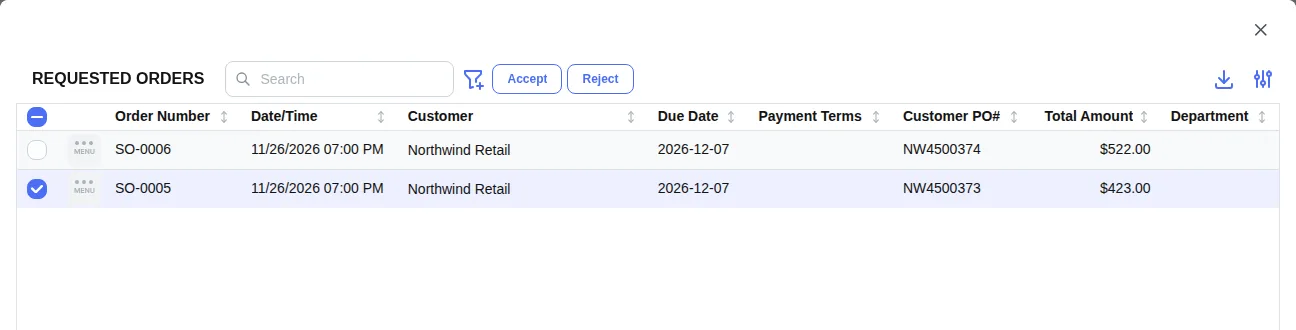 Requested Orders with an EDI order selected
-
Accept asks for the Location the order ships from. The location you pick here is used for the order, in place of the agreement's Ships from.
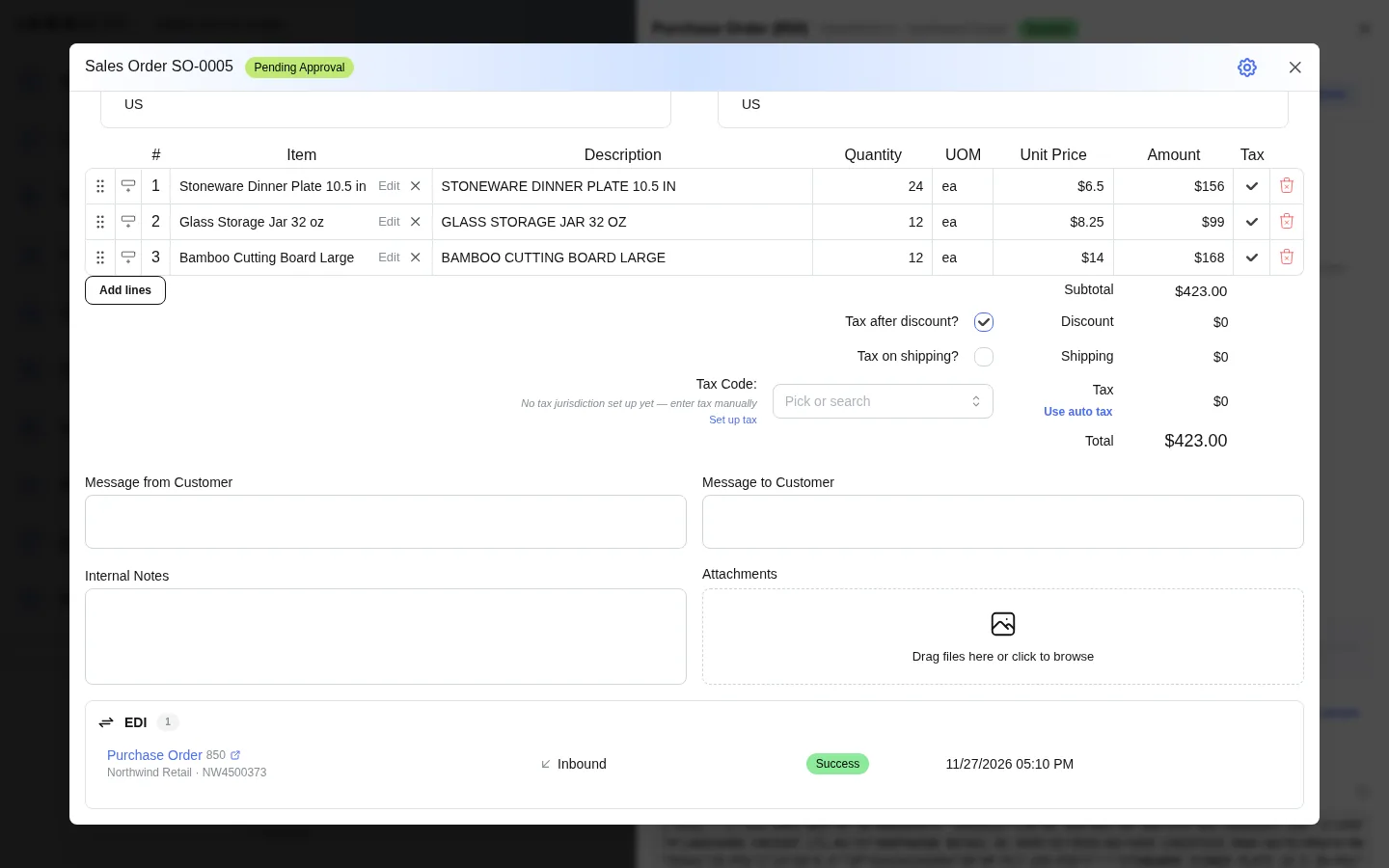 A sales order created from a customer's purchase order, with its EDI card
Accepting sends the customer an 855 saying which lines you accept as asked, and which differ in quantity, price or date. Reject removes the order and sends an 855 rejection. An order with Automatic intake is acknowledged straight away.
Order changes (860)
When the customer changes an order, the change is applied by itself if the changed lines are not yet shipped and the change is a quantity, a date, a price, or a cancelled line. The customer gets an 865 saying what was applied.
Anything else waits on EDI → Documents as Change to review: an added item, a change to a line already shipped or billed, a new ship-to, a whole-order cancellation. Make in the sales order what you accept, then Accept or Reject the change on the document; the customer is answered with an 865 either way. See Review an order change.
Packing cartons
Retailers usually want a ship notice that lists every carton, its contents and its SSCC number, and a GS1-128 label on each carton. ianaiERP packs, numbers and labels the cartons for you.
Set up once: your GS1 Company Prefix
Go to Settings → Shipping → Carton labels and enter:
- GS1 Company Prefix — as GS1 issued it, 4 to 12 digits. A U.S. U.P.C. Company Prefix takes a leading 0 (614141 is 0614141).
- SSCC extension digit — the first digit of every SSCC, 0 to 9. If you are moving from another system, keep the one it used.
Every carton and pallet packed after that gets an SSCC-18 number. Without a prefix, cartons are packed but carry no SSCC.
Packing a shipment
Open the shipment. The Packing card shows whether it is Not packed, Partly packed, Fully packed or Over-packed, and how many units are packed into how many cartons.
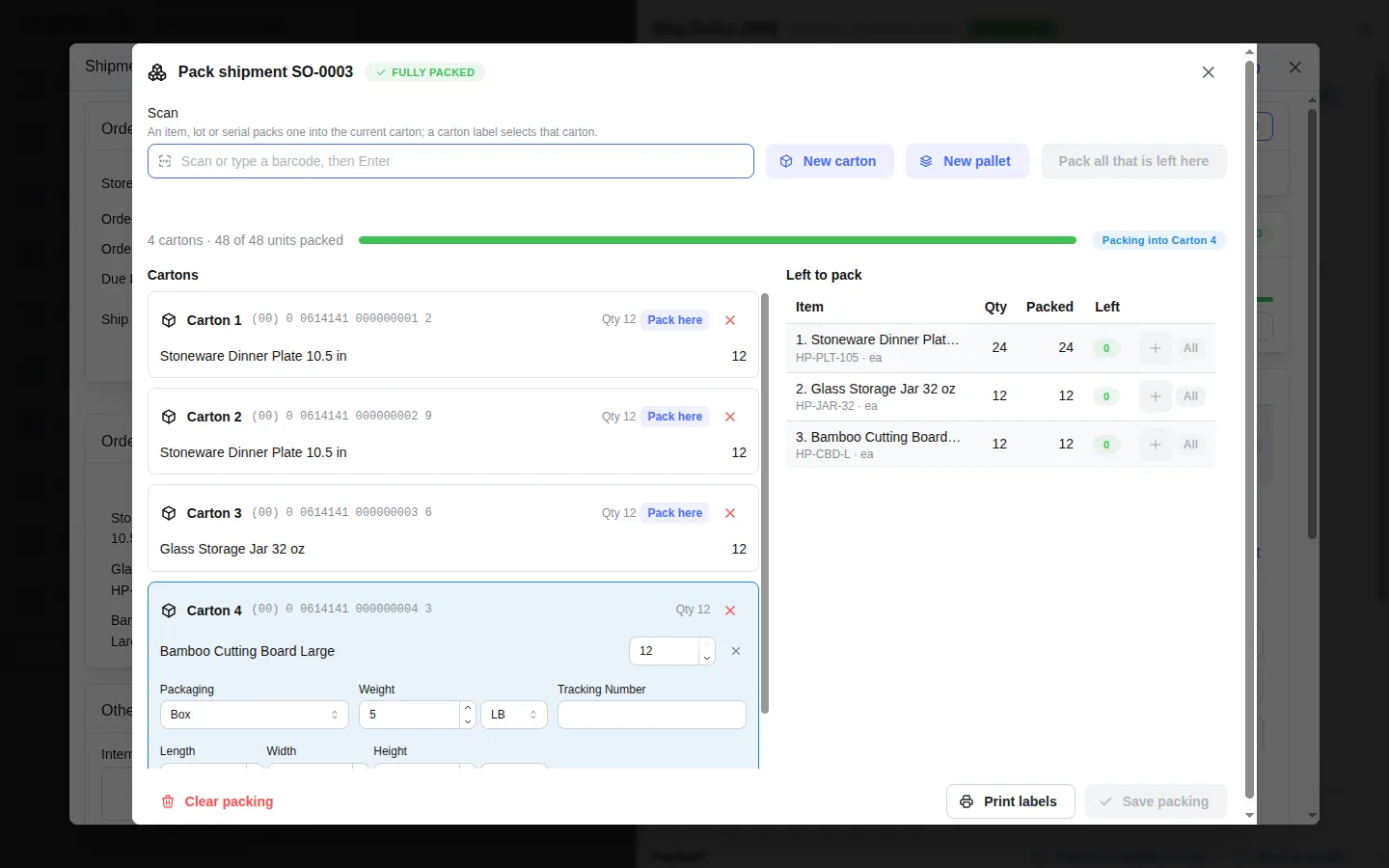 Packing a shipment into cartons, each with its SSCC
Click Pack:
- Scan an item, lot or serial to pack one into the current carton; scan a carton label to select that carton.
- New carton starts a carton; New pallet starts a pallet you can put cartons on (On pallet).
- For each carton, set the Packaging, Weight, dimensions and, for parcel shipments, the Tracking Number.
- Pack all that is left here puts the remaining units in the current carton.
- Left to pack shows what is not packed yet.
Click Save packing, or Save and print labels.
Carton labels
Carton labels prints one 4×6 GS1 logistic label per carton and pallet, through your normal printing (printer settings, the Bridge app, preview or PDF). Each label carries the ship-from and ship-to, carrier, BOL and PRO numbers, the customer's PO number, carton 3 of 12, contents, weight, tracking number, and the SSCC barcode.
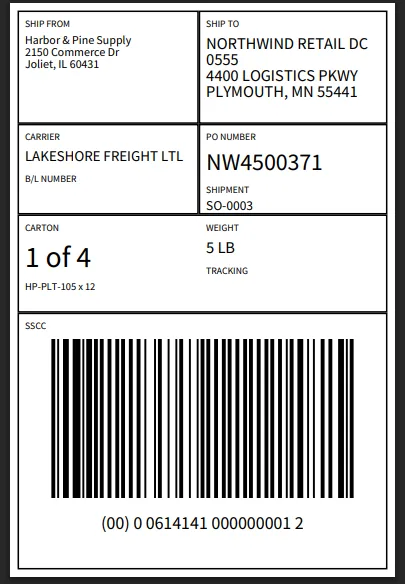 A GS1-128 carton label
On the mobile app
On the shipment screen, switch Mode to Cartons (it is the default for a customer that takes ship notices). Scan items into a carton, use New carton, Close carton, New pallet and Close pallet, then Save. Scanning a carton's SSCC selects it. Ship appears once the shipment has cartons. Labels are printed from the web app.
Completing an unpacked shipment
If you complete a shipment for a customer that takes ship notices with carton detail, and it is not fully packed, you are warned Packing is not complete and can Pack or Complete anyway. Completing anyway is allowed, but the ship notice waits as Shipment not packed until the shipment is packed.
These packing controls appear only for companies with the EDI module, a GS1 Company Prefix, or a shipment that already has cartons. Elsewhere, a shipment's row menu offers Pack cartons if you need it.
Ship notices (856)
When a shipment of an EDI order ships, its 856 is sent once: the shipment, the customer's order and PO line numbers, and each carton or pallet with its SSCC and contents. Every unit shipped is listed under its PO line.
A ship notice waits instead of going out incomplete:
- Shipment not packed — pack the remaining units into cartons.
- Line not on the partner's order — a shipment line answers no line of the customer's PO; fix the line.
A waiting ship notice is checked again every five minutes and sent as soon as the shipment is ready. A few retail programs identify packages by tracking number instead of SSCC; their agreement says so.
Invoices (810)
When you invoice an EDI order, the 810 is sent automatically, quoting the customer's PO and lines. It always goes after the ship notices of the shipments it bills, never before.
An invoice that bills more than one of the customer's purchase orders waits as Invoice of several orders: split it, or bill the customer another way.
Customer remittances (820)
A customer's 820 remittance advice says what it paid and for which invoices. It is matched to your open invoices and waits as Remittance to record. Check the matches and Record payment to create the customer payment, or Reject it. Deductions are shown but not posted. See Record a customer remittance.
Set the agreement's Payment method and Deposit to account first: until they are set, no remittance can be recorded.
Inventory advice (846)
Some retailers, especially drop-ship and e-commerce programs, want a daily feed of what you have available. Once the 846 agreement is set up, one advice is sent a day at the agreement's Sent daily at time (company time), with the stock of its chosen location. It lists the items the customer buys from you, under the customer's own item numbers from your cross-references.
Open a sent advice to see Inventory reported: the items reported and, with Show why, any item that was not. A day that is missed is never sent late; the next day's advice carries current stock.
Application advice (824) and messages (864)
- An 824 is the customer's system reporting what it made of your documents. A rejection marks your document Rejected by the partner's application: open the advice, fix what it names, and send a corrected document as the customer asks.
- An 864 is a text message from the customer — a notice, a policy change. It is kept on EDI → Documents, and the people who work EDI are notified.