Trading Partners
A trading partner is a customer or vendor you exchange EDI documents with. Each one is linked to its customer or vendor record in ianaiERP, so its orders become your sales orders and your purchase orders go to it.
Open EDI → Trading partners to see them all.
 The trading partners list
Each row shows the partner's Name, the Customer or vendor it is for, its Routes by status (Live, Testing, Shadow run, Stopped, and Test routes), how many Go-live requests wait for a decision, how many Documents needing a person it has, and when its Last document arrived. The counts are links: click one to open those requests or documents.
A customer or vendor record also has an EDI tab with Open the trading partner.
Who sets partners up
How your trading partners are set up depends on how your company's EDI service is arranged with ianai:
- ianai sets up your partners (the usual arrangement). ianai's EDI team creates the partner, its connections, IDs, agreements and routes, and tests them with the partner. Your administrators see everything on these screens read-only, with the note ianai sets up your partners; ask your ianai contact. They still choose the agreement options, approve each go-live, and stop or resume routes.
- Your administrators set partners up themselves. A tenant owner, tenant admin or company admin with EDI write gets Add New on this page and the add, edit and delete buttons on every tab described below.
Either way, nothing goes live without one of your own administrators approving it.
The parts of a trading partner
Click a partner to open it. The tabs are Routes, Connections, Interchange IDs, Agreements, Cross-references, Field mapping, Documents and Activity. A banner at the top says when documents or go-live requests are waiting on someone.
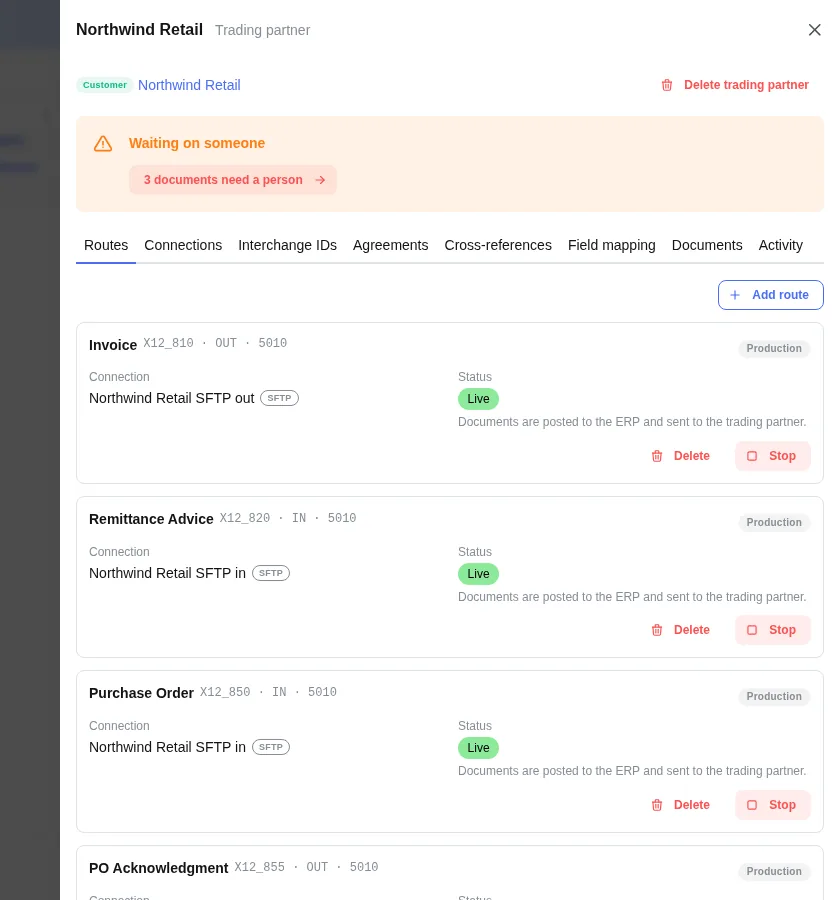 A trading partner opened on its routes
The pieces fit together like this:
| Part | What it is |
|---|---|
| Connection | How files travel: an SFTP folder or an AS2 link, for test or for production. |
| Interchange IDs | The partner's and your company's EDI IDs, which address every document and tell partners apart. |
| Agreement | One document the two of you exchange — for example Purchase Order 850, inbound, 4010 — with its mapping and options. |
| Route | An agreement on a connection, with a status that decides whether documents are only checked or really posted and sent. |
Adding a trading partner
Click Add New on EDI → Trading partners:
- Customer or vendor — the ERP record the partner's documents are for. A record that is already a partner cannot be picked.
- Name — how the partner reads on the EDI screens; filled from the record.
- Profile — what this kind of partner exchanges and whose templates its documents use. Customer (X12) and Vendor (X12) suit most partners. Retail programs with their own requirements have their own profile, such as Walmart.com drop-ship vendor, Kroger and CVS distribution centers. A retail profile applies only to the program it names; for another program of the same retailer, use Customer (X12).
Click Create. The partner opens so you can add its connections, IDs, agreements and routes.
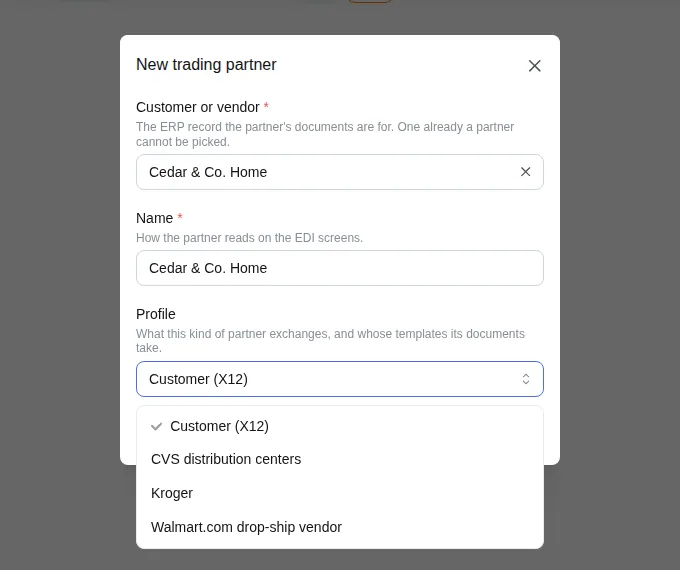 Adding a trading partner and choosing its profile
Connections
The Connections tab lists how documents travel to and from the partner. Each connection shows its protocol (SFTP or AS2), direction, environment (Test or Production), and status.
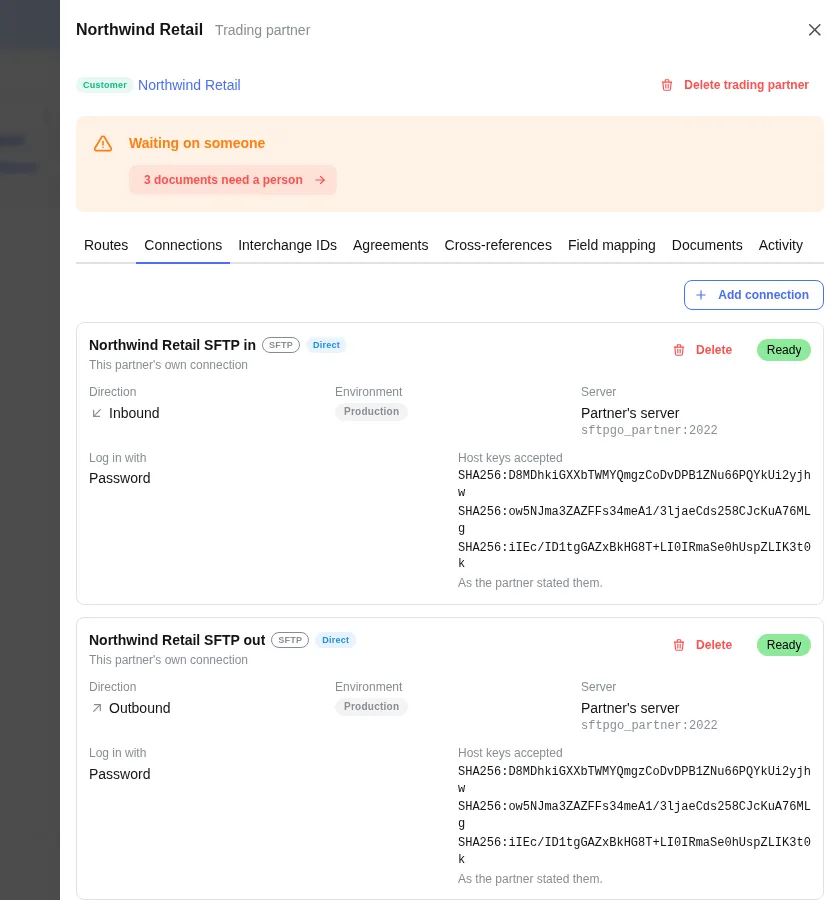 A partner's connections and your company's AS2 identity
A connection is either Direct — this partner's own — or Network — a VAN or EDI provider mailbox shared with other partners. On a shared mailbox, each document is matched to its partner by its interchange IDs.
SFTP. Either the partner hosts the server, or you do:
- On the partner's server: enter the Host, Port, Username and Folder prefix, and log in with a password, a new key or a key you already have. The server's host keys are read and pinned when you save, so only that server is trusted.
- On our server: the login is created for you and shown once, to pass to the partner. Copy it then — later it is masked.
AS2. Enter the Partner's AS2 ID, Partner's AS2 URL and Partner's certificate. The connection shows when the partner's certificate expires, and your approvers are notified before it does.
Your company's AS2 identity
The Our AS2 identity card on the same tab is your company's own AS2 ID and certificate. Partners send to this AS2 ID and encrypt with this certificate, and every AS2 connection uses it. It is set up once, before the first AS2 connection: a key pair is generated, or your existing one is imported from a .p12 or .pfx file — useful when you move from another system and want partners to see no change. Download certificate gives you the certificate to send to partners. The AS2 ID cannot change once a connection uses it.
Interchange IDs
The Interchange IDs tab holds, for Production and Test separately, Ours and Theirs: each a qualifier and an ID (for example ZZ / ACME), plus optional group IDs. Nothing is sent to a partner until its IDs are set.
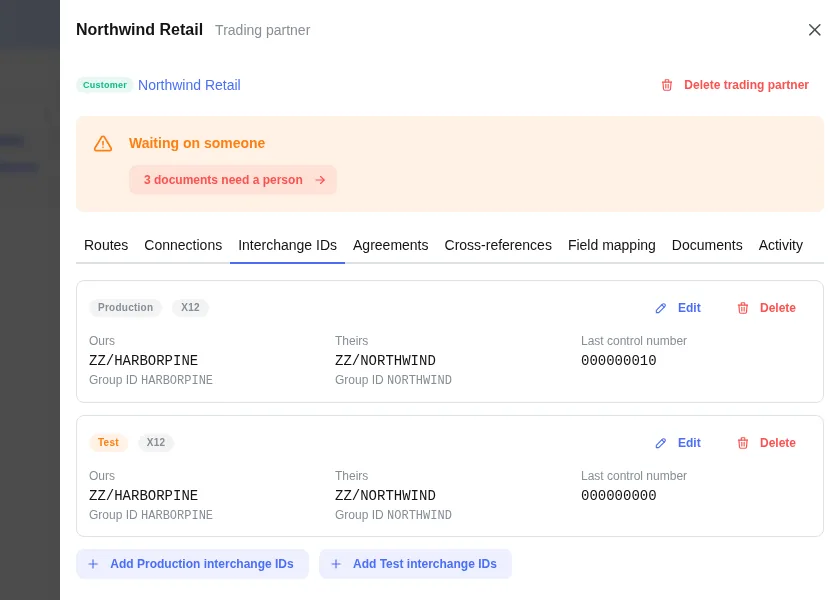 A partner's production and test interchange IDs
The Last control number is the number of the last interchange sent to this partner. It only ever goes up; raising it continues an old system's numbering when you move to ianaiERP.
Agreements
Each agreement is one document type, version and direction you exchange with the partner, using the built-in template for that document (or the partner's own, for a retail program).
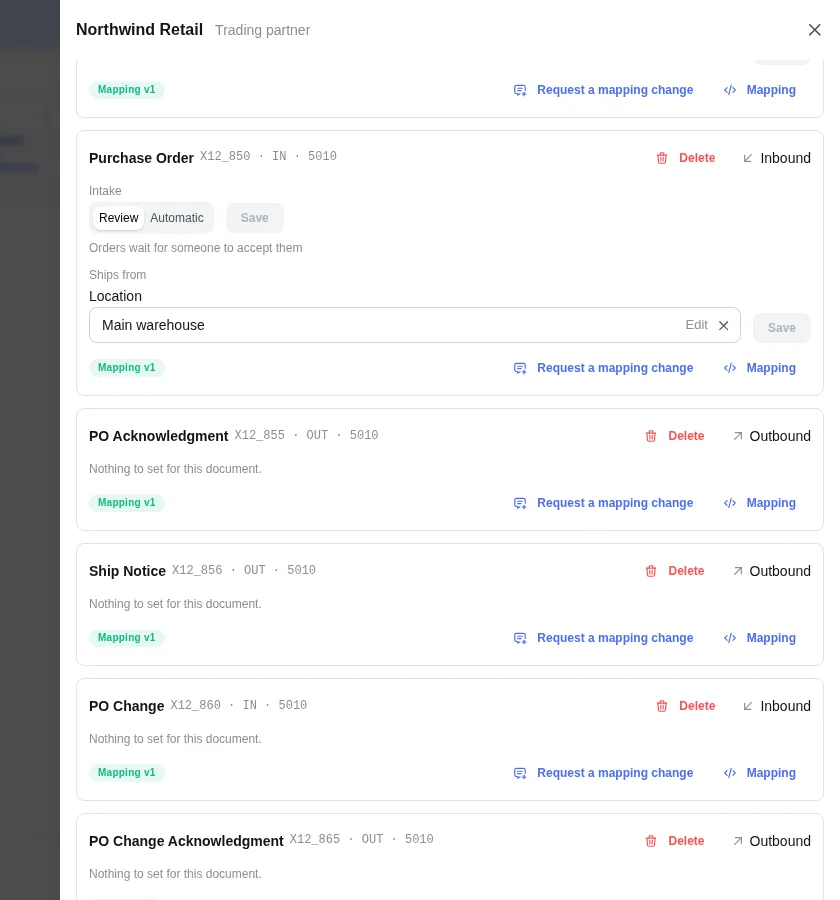 A partner's agreements with the intake option
The agreement card shows its mapping version, Mapping (read the rules), and Request a mapping change. Some agreements have options, which a tenant owner, tenant admin or company admin with EDI write can change at any time — including when ianai sets up the partners. Others see the options read-only.
| Agreement | Option | What it does |
|---|---|---|
| Purchase orders received (850) | Intake | Review (the default): orders wait for someone to accept them. Automatic: orders are created open, with no one accepting them first. |
| Purchase orders received (850) | Ships from | The location the orders ship from. Without one, orders are created with no location and cannot be shipped until someone sets one. |
| Acknowledgments received (997) | Acknowledges within | How many hours the partner has to acknowledge what you send before it is flagged Not confirmed in time (default 24; 0 means not watched). |
| Remittances received (820) | Customer payments | Payment method, Deposit to and Discounts taken post to for recorded payments, and whether fully matched remittances are recorded by themselves. No remittance can be recorded until a payment method and deposit account are set. |
| Inventory advice sent (846) | Inventory advice | Sent daily at (default 06:00, company time) and the location whose stock is reported. |
Your company's approval rules do not run on orders that arrive by EDI; Review intake is the control. Use Automatic only for partners whose orders you are sure you can always fill.
More settings for a document, and where its extra values go in your records, are on the Field mapping tab. See Cross-References & Field Mapping.
Routes
A route puts an agreement on a connection. Its status decides what happens to the documents:
| Status | What happens |
|---|---|
| Testing | Documents are checked and held. Nothing is posted or sent. |
| Shadow run | Documents are checked beside your current process. Nothing is posted or sent. |
| Live | Documents are posted to the ERP and sent to the trading partner. |
| Stopped | Documents are held until the route is resumed. |
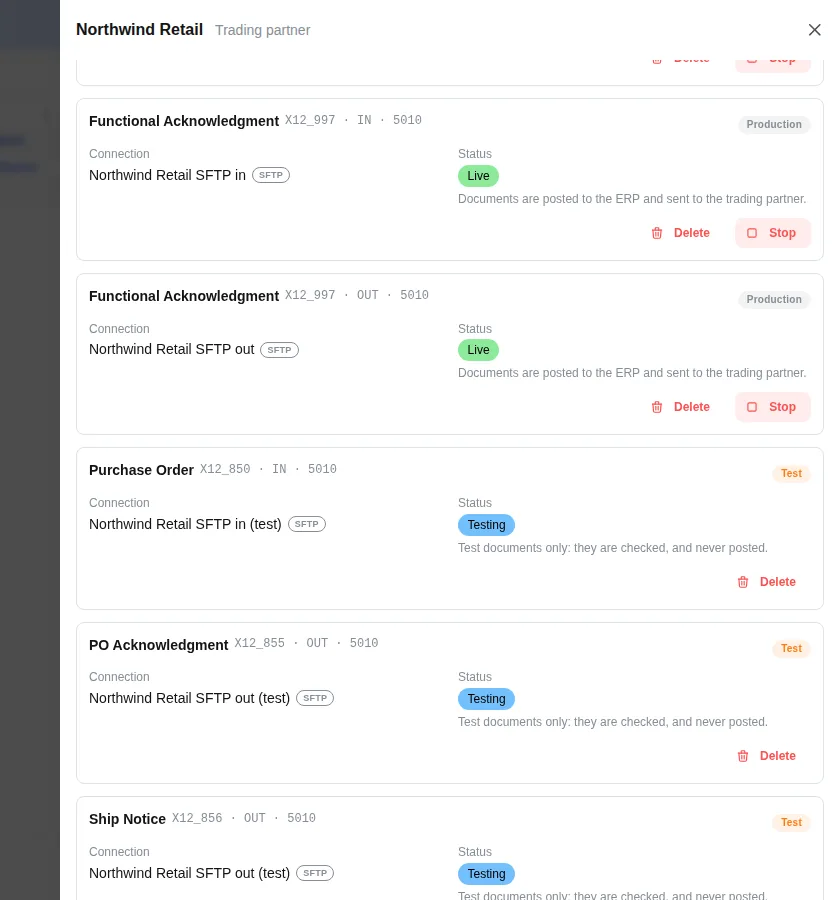 A partner's test and production routes
A route on a Test connection always stays testing: test documents are checked and never posted. A Production route starts testing and goes Live only when one of your administrators approves a go-live request. See Testing & Going Live.
Stopping and resuming a route
Anyone with EDI write can Stop a live production route at once — for example when a partner is sending bad data. Documents it receives are held, nothing is sent to the partner, and your approvers are notified.
Resume is for a tenant owner, tenant admin or company admin with EDI write. The route goes live again and the documents it held are posted.
Activity
The Activity tab lists every change made to the partner, newest first, with who made it: connections added, IDs set, intake changed, go-lives requested and approved, routes stopped and resumed, field mapping saved. Show what was recorded shows the details of each change.
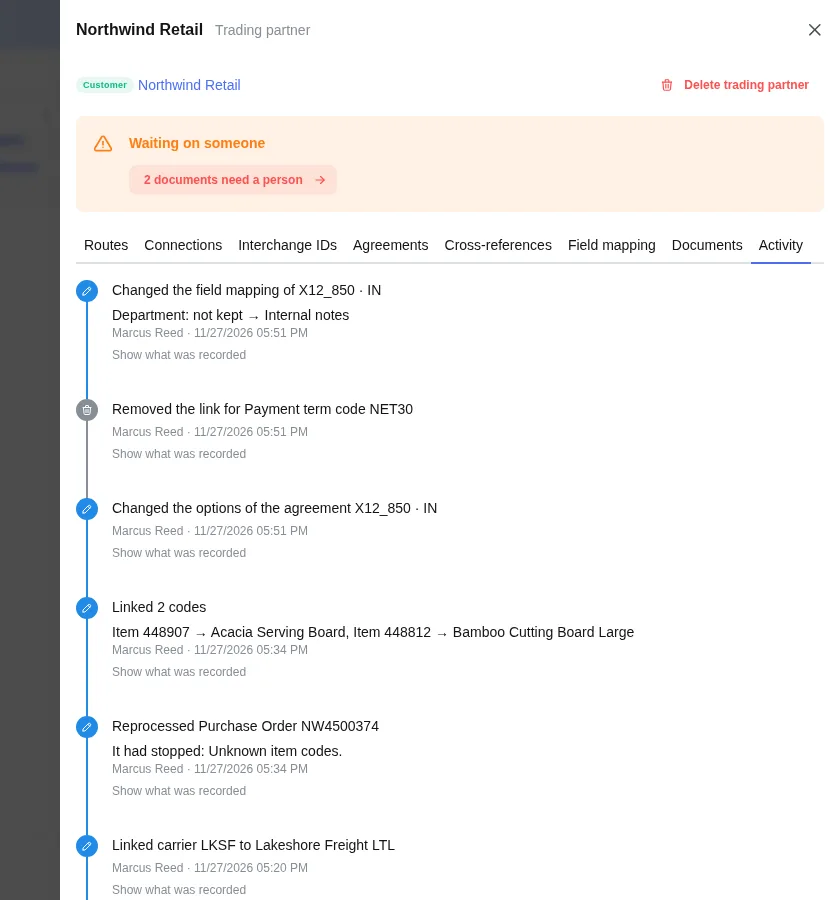 A trading partner's activity