Testing & Going Live
Before a trading partner's documents create real orders or reach the partner's system, they are tested. A production route goes live only when one of your own administrators approves it, and any route can be stopped at once.
Testing
Testing happens on two kinds of route:
- Test routes, on a test connection. The partner sends test documents (marked as test data in their envelope) and receives yours. Test documents are checked exactly like real ones — mapping, item and unit codes, required values — but never posted. A successful one says Checked in the test environment. Test documents are never posted, so no ERP record was made.
- Production routes that are still testing. Documents that arrive are checked and held. They are not lost: orders held while testing are posted when the route goes live.
Watch the partner's test documents on EDI → Documents (filter Environment to Test). Anything that stops shows the same errors and fixes as in production — for example an item code to link — so fixing them during testing means the first real orders go straight through. See Fixing Documents That Need a Person.
When a test document matters — a typical order, or an unusual one — open it and click Keep as sample. Every future version of the partner's mapping is tested on its samples before it is put in force.
Shadow run
When you move from another EDI system, a production route can run in Shadow run: copies of the partner's live documents are checked beside your current process, while your old system keeps handling them. Nothing is posted, sent or acknowledged. When the shadow run is clean, the route goes live and only new documents are posted. See Moving from Another EDI System.
Requesting go-live
When testing is done, a go-live is requested for each production route — by ianai when ianai sets up your partners, or by your administrator when your administrators set partners up themselves. The request carries a note on what was tested.
The approvers are notified: your tenant owners, tenant admins and the company's admins.
Approving go-live
Open EDI → Go-live requests. The list opens on Pending requests and shows the trading partner, route, who asked and when.
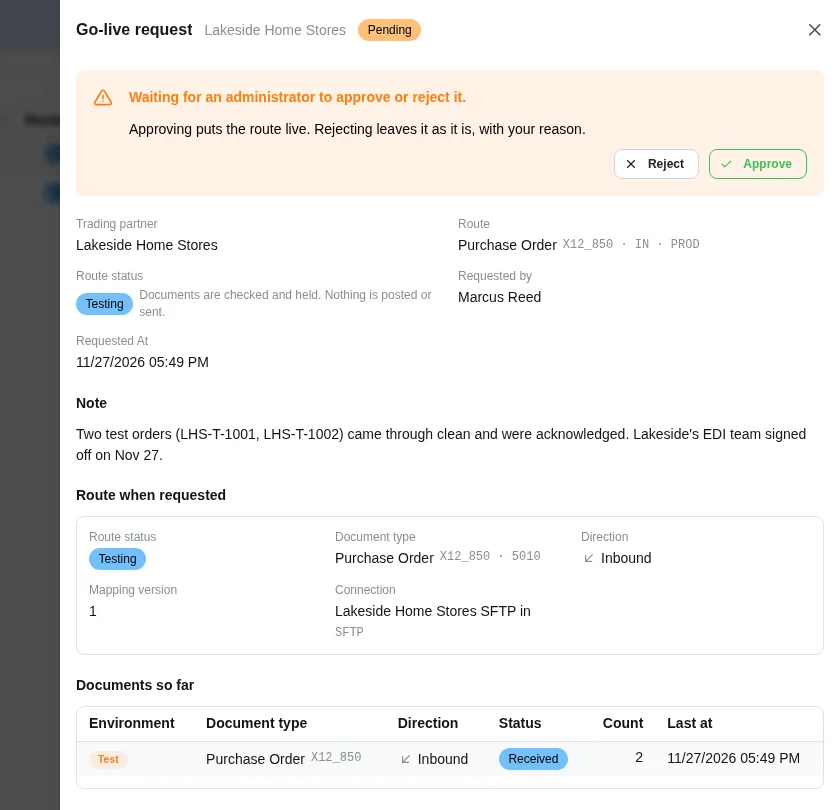 A go-live request with the evidence collected for it
Open a request to see the evidence collected when it was made:
- Route when requested: its status, document type, direction, mapping version and connection.
- Documents so far: the documents exchanged on the partner's routes, by environment, type, direction and outcome, with counts and the time of the last one.
- The requester's Note.
Then:
- Approve go-live — from now on the route posts documents to the ERP and sends to the partner. Orders it held while testing are posted now. (Documents from a shadow run are never posted.)
- Reject go-live — the route stays as it is. A reason is required, and the person who asked sees it.
Who may decide: a tenant owner, tenant admin or company admin with EDI write permission. The person who requested a go-live cannot approve it themselves, so if you have one administrator who requested it, a second administrator decides. ianai staff and AI employees never approve go-lives.
Every request, approval and rejection is recorded on the partner's Activity tab.
After go-live
A live route works on its own:
- Received documents become ERP records (or wait for you where something needs a person).
- Your documents are sent automatically as your orders, shipments and invoices reach the right stage.
- 997 acknowledgments go both ways without anyone touching them.
Check EDI → Documents daily, or let the red needs a person indicator and your notifications tell you when something waits.
Stopping a route
If a partner starts sending bad data, or you need to pause the exchange for any reason, anyone with EDI write can open the partner's Routes tab and Stop a live route. It takes effect immediately:
- Documents the route receives are held, not posted.
- Nothing is sent to the partner on that route.
- Your approvers are notified.
To restart, a tenant owner, tenant admin or company admin clicks Resume. The route goes live again and the documents it held are posted. A document that arrived while the route was stopped and shows Route stopped can be reprocessed once the route is resumed.