EDI Documents
Every EDI document your company receives from a trading partner or sends to one is kept on EDI → Documents. This is the screen you check each day: anything that stopped and needs a person shows here, with the reason and the way to fix it.
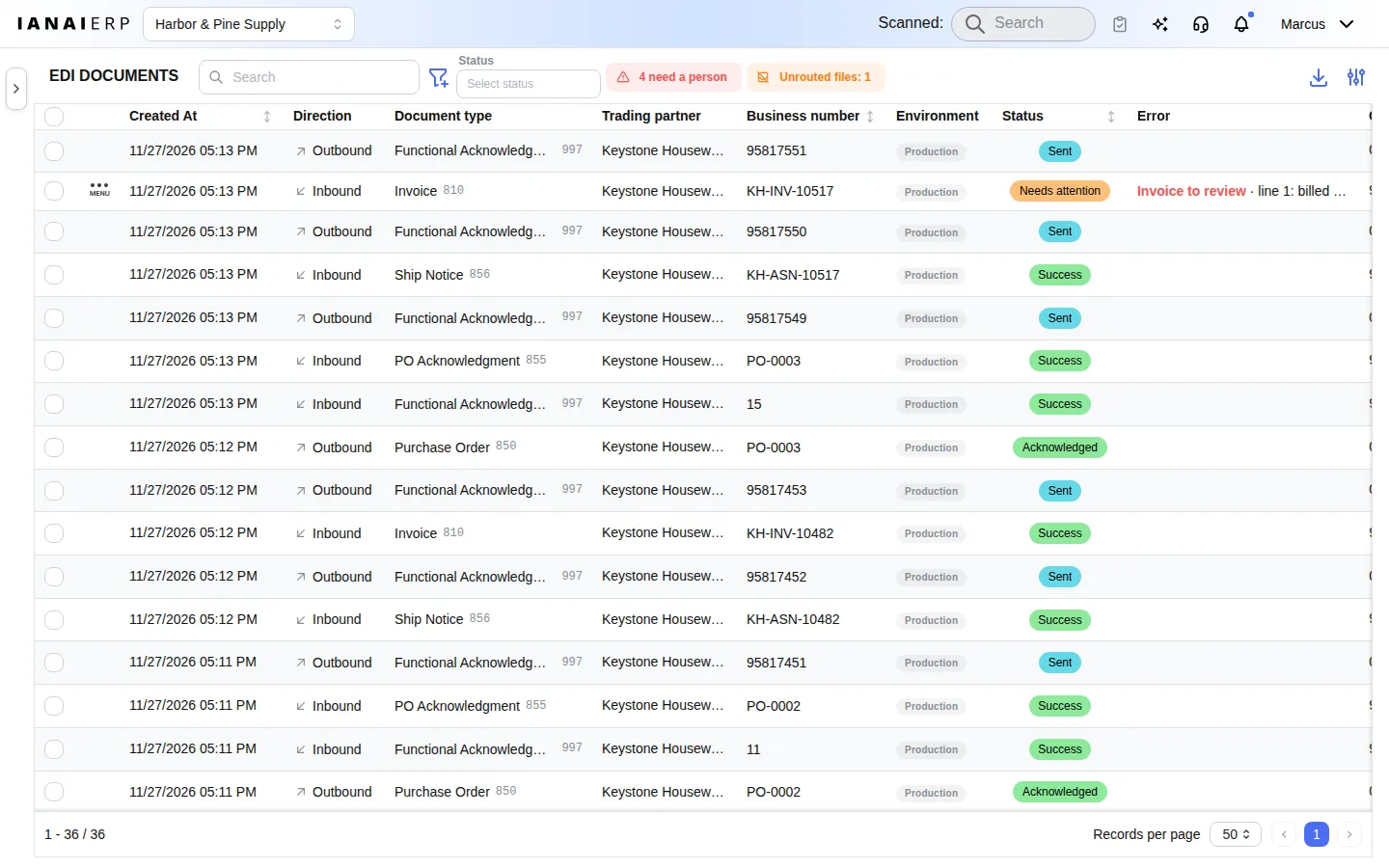 EDI Documents with the needs-a-person and unrouted-files indicators
The list
The list shows every document, newest first. Each row has the time it was created, its Direction (Inbound or Outbound), its Document type (for example Purchase Order 850), the Trading partner, the Business number (the PO, ship notice or invoice number), the Environment (Test or Production), its Status, any Error, and the interchange Control number.
Filter by Status in the header, or by Document type, Direction, Environment, Trading partner, Error and Created At.
Up to three indicators sit in the header. Each appears only when it has something to show:
| Indicator | What it counts | Click it to |
|---|---|---|
| N needs a person (red) | Documents that are Needs attention, Failed or Rejected | Filter the list to them |
| Unrouted files: N (orange) | Files received that no trading partner or route took | Open Unrouted files |
| Waiting on you: N (violet) | Questions and approval requests the EDI Coordinator has for you | Answer them without leaving the page — see The EDI Coordinator |
Documents that were rejected on purpose (a vendor invoice or a customer remittance someone rejected) stay Rejected and are counted in the red indicator, but nothing more needs to be done with them.
What each status means
A document you receive moves Received → Processing → Posting, then ends in one of the states below. A document you send moves Pending → Queued → Sent → Delivered → Acknowledged.
| Status | Meaning |
|---|---|
| Received | Received and stored, waiting to be processed. |
| Processing | Being mapped and checked. |
| Posting | Being posted to the ERP. |
| Success | Became an ERP record (for example a sales order). |
| Waiting to retry | The ERP could not be reached. It is tried again by itself. |
| Needs attention | Stopped. A person needs to look at it — the Error says why. |
| Failed | Failed. A person needs to look at it. |
| Duplicate | A purchase order the partner sent again. It was not posted a second time. |
| Pending | Recorded, not yet on its way. |
| Queued | In line to be sent. |
| Sent | Sent to the trading partner. |
| Delivered | The connection confirmed delivery (an AS2 receipt). |
| Acknowledged | The trading partner's 997 accepted it. |
| Rejected | The partner rejected a document you sent (in its 997, or in an 824 from its own system), or a person rejected a vendor invoice or a customer remittance. |
| Migrated | History brought over from your previous EDI system. A record only: never posted, sent or acknowledged. |
Documents in the Test environment are checked exactly like production ones but never create an ERP record. A successful test document says Checked in the test environment.
You never send 997 acknowledgments yourself. ianaiERP sends one for every group of documents it receives, and matches the 997s partners send back to the documents you sent them.
A document's page
Click a row to open the document.
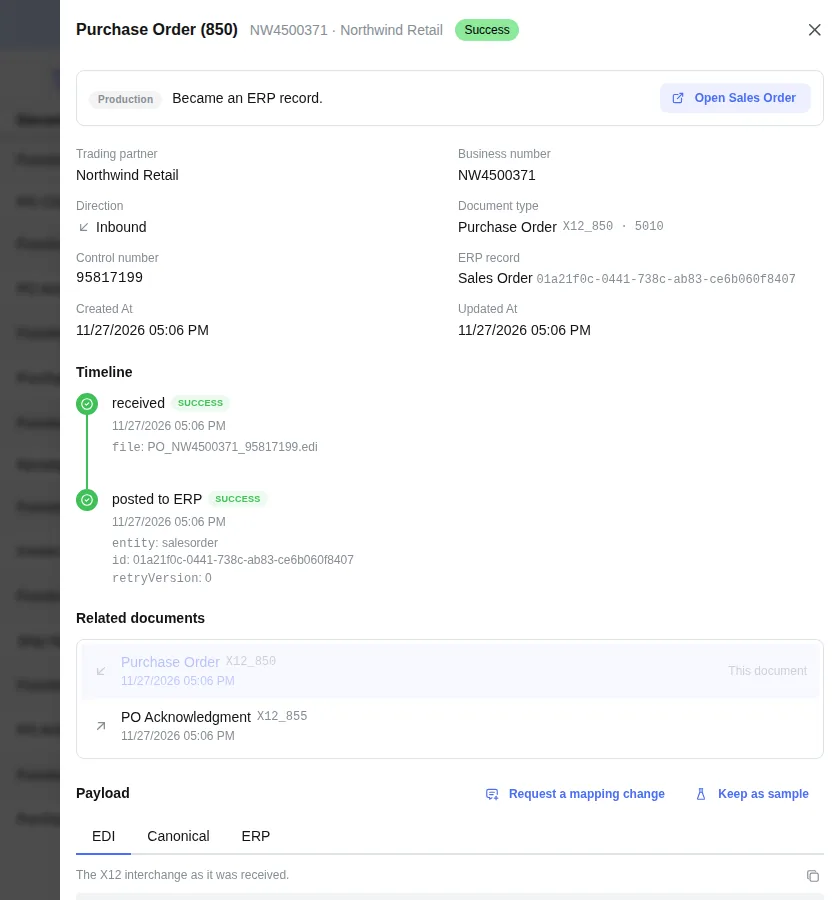 A received purchase order with its outcome, timeline and related documents
From top to bottom:
- The problem, when there is one: the error, the message, what it means, and the button that fixes it (for example Reprocess or Send again).
- A review section, for documents that wait on a decision: an order change, a vendor invoice or a customer remittance. See Fixing Documents That Need a Person.
- Outcome: what became of the document, with a button to open the ERP record it made or came from — Open Sales Order, Open Invoice and so on.
- The document's own content, for documents that carry more than an ERP record: the bills a remittance pays, the items an inventory advice reported, what a partner's 824 said about your documents, or the text of an 864 message.
- Facts: trading partner, business number, direction, type, control number and dates.
- Timeline: every step the document went through, successful or not.
- Related documents: the other documents with the same business number — for one order, its 850, 855, 856, 810 and their 997s.
- Payload: the document as EDI (the X12 exactly as it was received or sent), Canonical (a partner-neutral form) and ERP (what was sent to or read from the ERP), each with a copy button.
While a received document is still being processed, its page refreshes by itself every few seconds.
The page can also be opened from an ERP record: sales orders, shipments, invoices, purchase orders, bills, customers and vendors link to their EDI documents.
Everyday actions
These need EDI write permission. Without it, you can read everything but the buttons are replaced by a short note saying who can act.
Reprocess
Reprocess runs a received document through again. It is offered on received documents that are Needs attention, Failed or Waiting to retry — typically after you fixed what stopped it (linked a code, resumed a stopped route, added a missing address). The document goes back in line and is processed within a few seconds.
A document Interrupted while posting asks first. Processing stopped after the ERP was asked to create the order but before the answer was recorded, so the order may already exist. The dialog shows the customer PO number to look for: if the order is in the ERP, do not reprocess, or it is created twice.
Send again
Send again sends a document you sent before, for one that is Needs attention because of Delivery failed, Not confirmed in time or Delivery unknown. You can select several documents and send them again together.
The document is written again exactly as it was, under the same control number. If the partner already has it, they see a duplicate — so when it says the partner may have it, check with them first and use The partner did not get it: send again.
Keep as sample, Request a mapping change
In the Payload section, Keep as sample saves the document as a test case for its agreement's mapping, and Request a mapping change asks for a change in plain words. See Cross-References & Field Mapping.
Unrouted files
EDI → Unrouted files holds files that arrived on a connection but belong to no trading partner or route. They are kept, never posted. The list opens on files not yet replayed.
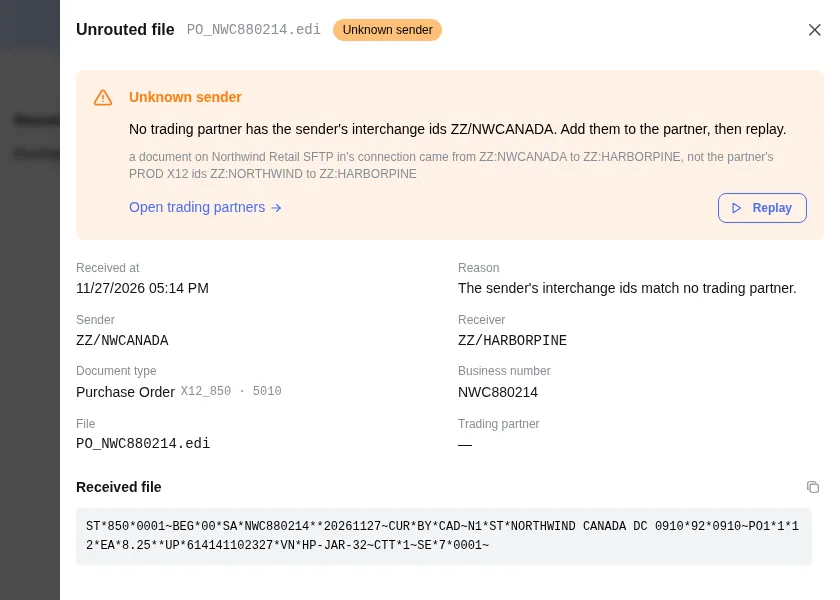 An unrouted file with its reason and the Replay button
| Reason | Meaning | What to do |
|---|---|---|
| Unknown sender | The sender's interchange IDs match no trading partner. | Add the IDs to the right partner's Interchange IDs tab, then Replay. |
| No route | The partner has no agreement or route for this document. | Add the agreement and route, then Replay. |
Replay (EDI write) runs the kept file through again. It becomes an ordinary document on the partner's route, and the route's status decides what happens next. Replaying the same file again returns the same document — it is never received twice.
Notifications
The EDI module tells the right people when something needs them. Each notification opens the page it is about.
| Notification | Who gets it |
|---|---|
| A received document stopped and waits on a person (the first of its kind on a route, so one bad mapping sends one notice, not one per order) | The company's EDI approvers: tenant owners, tenant admins and the company's admins |
| A message from a partner (an 864) | Everyone with EDI access in the company |
| A vendor accepted a purchase order with changes, backordered it, or rejected it | The person who created the purchase order |
| A go-live was requested, approved or rejected | The approvers, then the person who asked |
| A route was stopped | The approvers |
| A new mapping version was put in force, or rolled back | The approvers |
| A mapping change you asked for is done or was declined | The person who asked |
| Your AS2 certificate, or a partner's, expires soon or has expired | The approvers |